

TODO: this needs a refresh

Remote Runs lets you execute Terraform / OpenTofu plan and apply operations in OpenTaco-managed remote environments instead of on your local machine. The changes don’t need to be pushed to the remote repo for this to function since the local directory will be zipped and uploaded to the remote CI environment to perform the plan. Because of execution happens remotely with centralized controls, remote runs enable consistent runtime behavior across your team. Logs are streamed back to your terminal so you keep a CLI-driven workflow while shifting execution off local laptops. This model is similar to HCP Terraform remote execution.
1

Create remote unit

To get started with remote runs, create a new unit at https://otaco.app/dashboard/units and choose the “remote” option. Select the version of Terraform / OpenTofu you want to use.
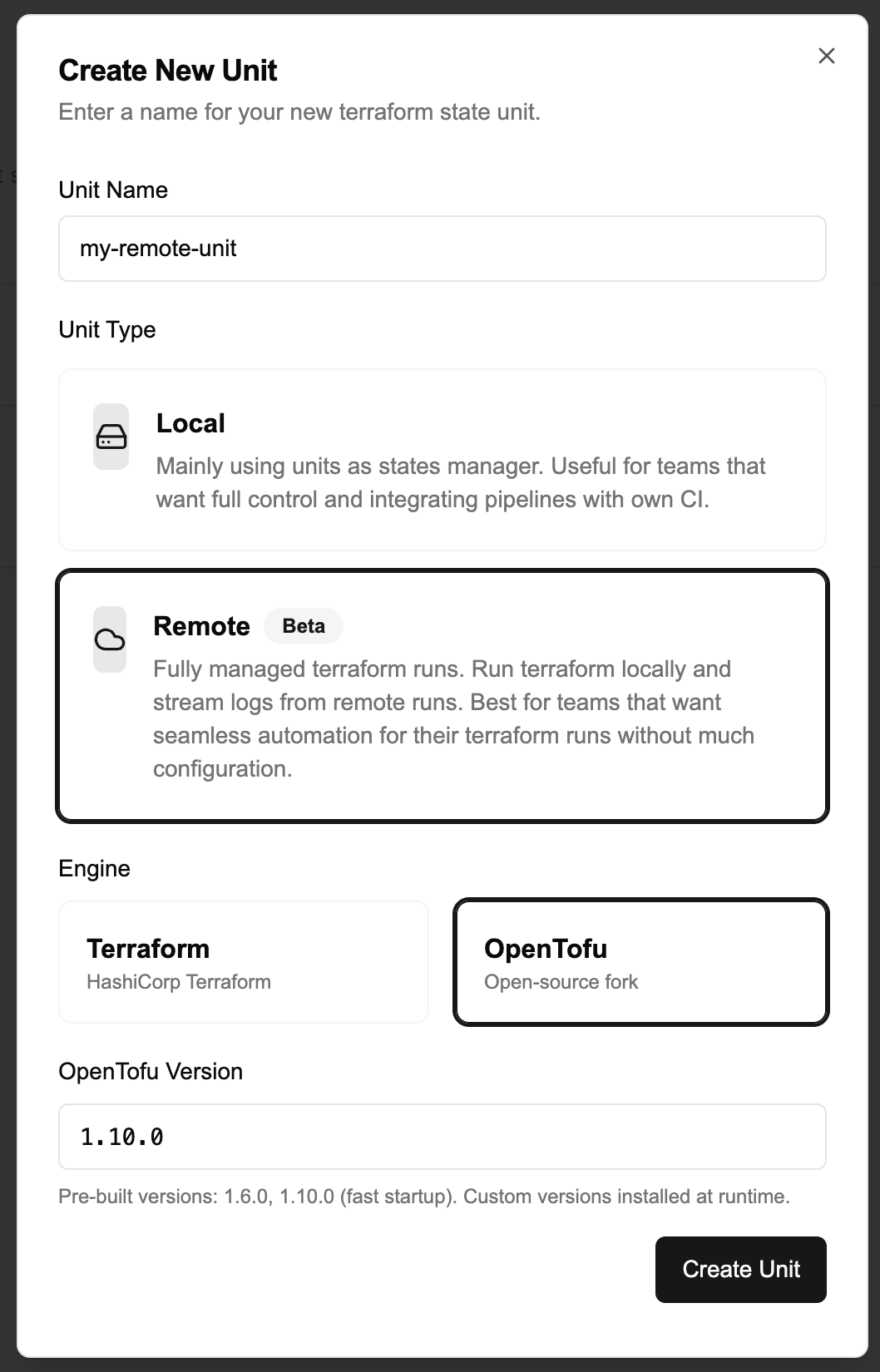
A set of prebuilt sandbox images for specific Terraform / OpenTofu versions exist to speed up sandbox provisioning.The set of images at the time of publishing can be seen HERE.You can use arbitrary versions, but doing so will slow sandbox startup because Terraform / OpenTofu will be install upon startup
2

Configure cloud block

After creation, use the remote unit in the same way we did for for a local unit.Create a main.tf:Your cloud block should follow this structure (replace placeholders with your real values from the unit details page https://otaco.app/dashboard/units > View Details):
terraform {
  cloud {
    hostname     = "otaco.app"
    organization = "<your-org-id>"

    workspaces {
      name = "<your-unit-id>"
    }
  }
}

resource "null_resource" "smoke_test" {}
3

Authenticate with Terraform / Opentofu

If you haven’t already, using the cli you can run the following command to authenticate:
terraform login otaco.app
You will have to confirm and will then be redirected to a token generation page. This page will allow you to generate a token and you can copy paste it back into the cli.After pasting the token into the cli ou should see a message saying
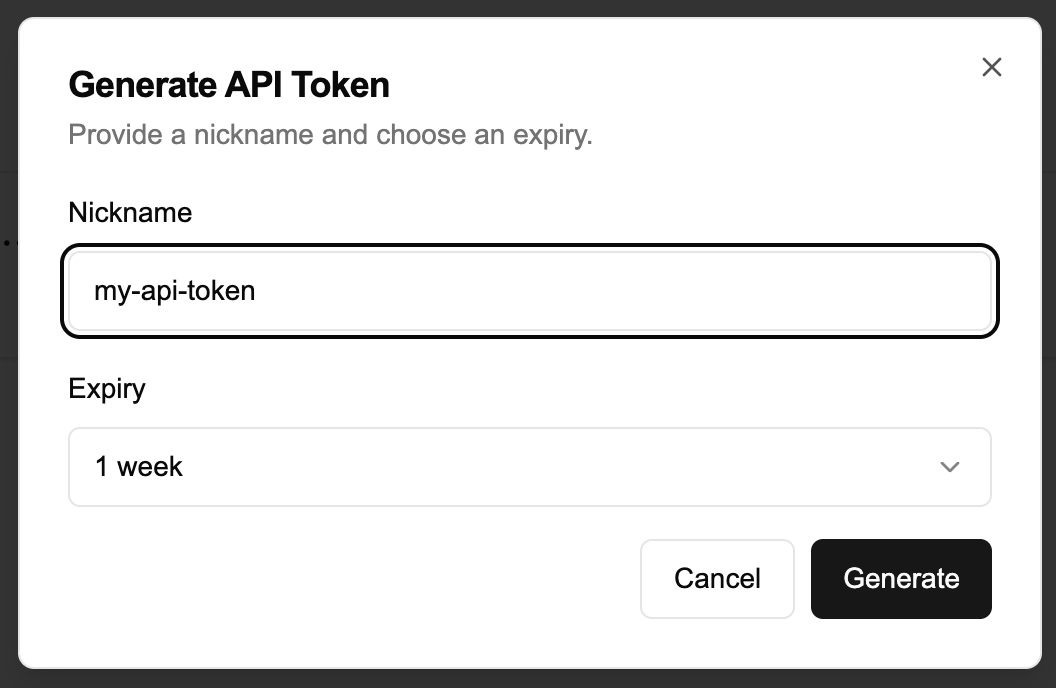
Success! Logged in to Terraform Enterprise (otaco.app)
4

Run init

Using Terraform or OpenTofu, run init. It should succeed.
  ~ terraform init

Initializing Terraform Cloud...

Initializing provider plugins...

Terraform Cloud has been successfully initialized!

You may now begin working with Terraform Cloud. Try running "terraform plan" to
see any changes that are required for your infrastructure.

If you ever set or change modules or Terraform Settings, run "terraform init"
again to reinitialize your working directory.
5

Run plan/apply

Using Terraform or OpenTofu, run plan.You will see the logs stream from the remote sandbox to your terminal.
  ~ terraform plan

Running plan in Terraform Cloud. Output will stream here. Pressing Ctrl-C
will stop streaming the logs, but will not stop the plan running remotely.

Preparing the remote plan...

To view this run in a browser, visit:
https://otaco.app/app/org_01K6B5J5NW8DGF5NJ3DGD96ZKN/fa802823-e96d-4b03-883c-9ac1001f6c3c/runs/run-35127d448cdc482f80c5105aaf015134

Waiting for the plan to start...

Preparing terraform run...
Downloading configuration...
Extracting workspace...
Packaging workspace for remote execution...
Starting remote execution environment...
Initializing terraform...
Remote plan in progress... (15:00:06)
Remote plan in progress... (15:00:07)
Remote plan in progress... (15:00:08)
Remote plan in progress... (15:00:09)
Remote plan in progress... (15:00:10)
Remote plan in progress... (15:00:11)

Initializing the backend...

Initializing provider plugins...
- Reusing previous version of hashicorp/null from the dependency lock file
- Installing hashicorp/null v3.2.4...
- Installed hashicorp/null v3.2.4 (signed by HashiCorp)

Terraform has made some changes to the provider dependency selections recorded
in the .terraform.lock.hcl file. Review those changes and commit them to your
version control system if they represent changes you intended to make.

Terraform has been successfully initialized!

Terraform used the selected providers to generate the following execution
plan. Resource actions are indicated with the following symbols:
  + create

Terraform will perform the following actions:

  # null_resource.smoke_test will be created
  + resource "null_resource" "smoke_test" {
      + id = (known after apply)
    }

Plan: 1 to add, 0 to change, 0 to destroy.

Plan complete
If this is the case then well done! You have successfully executed your first remote run!